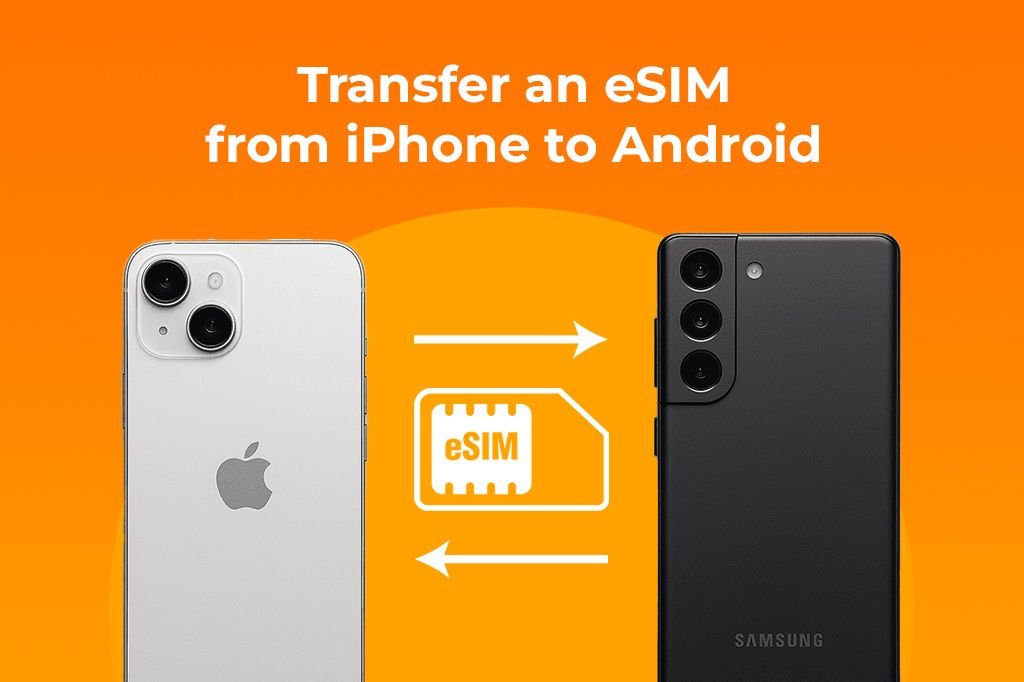
Switching from the Apple ecosystem to Android is an exciting journey toward more customization and freedom. However, the one hurdle that often worries users is moving their cellular connectivity. Gone are the days of simply popping out a plastic card; the era of the embedded SIM (eSIM) is here. While this technology is convenient, moving it across different operating systems requires a specific set of steps.
If you are wondering how to transfer eSIM from iPhone to Android without losing your number or data, you have landed on the right page. This guide removes the confusion, offering a clear, actionable roadmap to get your new Android device connected instantly. Let’s make your switch seamless.
Understanding the eSIM Technology
Before starting the transfer, it is helpful to know exactly what we are dealing with. An eSIM is a digital SIM that allows you to activate a cellular plan from your carrier without having to use a physical nano-SIM.
Unlike the physical cards we used for decades, this is a rewritable chip soldered onto your phone’s motherboard.
- No physical swapping: You cannot lose it or damage it physically.
- Multiple profiles: You can store multiple numbers on one device.
- Remote provisioning: Carriers update it over the air.
Why Switch from iOS to Android?
Many users are making the jump to Android to access cutting-edge hardware features like folding screens and high-refresh-rate displays found on Samsung and Pixel devices.
While the iPhone is a solid device, Android offers an open ecosystem that appeals to power users.
- Customization: Change your entire interface with launchers.
- File Management: Drag and drop files easily to a PC.
- Hardware variety: Choose from hundreds of manufacturers, not just one.
Pre-Transfer Checklist
You cannot just tap two phones together and expect the signal to jump over yet. You need to prepare both devices to ensure the process doesn’t get stuck halfway.
Make sure you have the following ready before attempting the migration:
- Wi-Fi Connection: Both devices need stable internet.
- Battery Life: Charge both phones to at least 50%.
- Unlocked Device: Ensure your new Android phone is carrier-unlocked or locked to the same carrier as your iPhone.
The Critical Role of Your Carrier
Here is the most important rule: Your mobile carrier controls the eSIM. Unlike a physical card you own, the eSIM profile belongs to the network provider.
Because iPhone and Android use different encryption for these profiles, you usually cannot do a direct Bluetooth transfer for eSIMs (with some rare exceptions).
- Authorization: The carrier must approve the move to a new device IMEI.
- Security: This prevents thieves from stealing your number easily.
Using the Carrier QR Code Method
The most common way to learn how to transfer eSIM from iPhone to Android is via a QR code provided by your operator. This code contains the specific profile for your new device.
If you have your original eSIM activation card, it might work, but usually, you need a fresh code.
- Contact customer support or visit your carrier’s store.
- Request a “SIM Swap” to a new device.
- They will generate a unique QR code for you to scan with the Android phone.
The Samsung Smart Switch Solution
If you are moving to a Samsung Galaxy device, you are in luck. Samsung has worked closely with carriers to make this easier during the initial setup.
When setting up a new Galaxy S24 or Fold device:
- Connect the iPhone to the Samsung via cable.
- Open the Smart Switch app.
- Look for the option “Transfer SIM from another device.”
- Note: This currently works best with specific carriers like T-Mobile or Verizon.
The Google Pixel Setup Process
Google Pixel phones also offer a streamlined onboarding process. When you boot up a Pixel 8 or 9, it asks if you want to copy data from an old device.
During the setup wizard, Google attempts to locate your existing number.
- Select “Download a SIM instead?” on the network screen.
- If your carrier supports it, the Pixel may prompt you to log into your carrier account to initiate the transfer.
Transferring on Verizon
Verizon has a robust system for switchers. You do not always need to call support if you are tech-savvy.
You can handle the switch through the “My Verizon” app or website.
- Log in and go to “My Devices.”
- Select “Activate or Switch Device.”
- Choose “Activate on an existing line.”
- Enter the IMEI2 (Digital SIM IMEI) of your new Android phone.
Transferring on T-Mobile
T-Mobile is generally very friendly toward eSIM users and allows for relatively quick swaps between operating systems.
The Magenta carrier often allows transfers via their website settings.
- Log into your T-Mobile ID.
- Select the line you want to change.
- Choose “Change SIM” and select “eSIM.”
- Input the EID number from your new Android settings.
Transferring on AT&T
AT&T users usually require a specific QR code pack sent via email or provided in-store. They are strict about security.
To move your service:
- Go to the “Bring Your Own Device” page on the AT&T portal.
- Enter your new Android’s IMEI.
- Follow the prompts to order a new eSIM activation kit (often sent digitally immediately).
How to Find Your Android EID and IMEI
Your carrier will ask for specific numbers to identify your new phone. You must provide the correct ones, or the signal won’t work.
Here is how to find them on most Androids:
- Go to Settings > About Phone > Status.
- Look for IMEI (eSIM) or IMEI 2.
- Look for EID (Embedded Identity Document).
- Copy these numbers down accurately.
Manual Input Address (SM-DP+)
Sometimes, the camera won’t scan the QR code. In this case, you need to enter the activation details manually. This is the “under the hood” method.
You will see an option labeled “Enter details manually” at the bottom of the scan screen.
- SM-DP+ Address: This is the server address of your carrier.
- Activation Code: A long string of characters provided by the carrier.
- Confirmation Code: (Optional) Sometimes required for added security.
When to Delete the eSIM from iPhone
A common mistake is deleting the plan from the old iPhone too early. Never delete your old eSIM until the new one has a signal.
If you delete it first, you might lose the ability to receive the 2-step verification text needed to log into your carrier account.
- Wait until your Android shows signal bars (4G/5G).
- Make a test call from the Android.
- Once confirmed, go to iPhone Settings > Cellular > Delete eSIM.
Troubleshooting: No Signal After Transfer
Did you scan the code but still see “Emergency Calls Only”? Do not panic. Activation is not always instant.
Try these simple fixes:
- Restart the phone: This forces a network refresh.
- Toggle Airplane Mode: Turn it on for ten seconds, then off.
- Check Carrier Lock: Ensure your Android wasn’t locked to a different carrier previously.
Troubleshooting: “Profile Already Installed” Error
This error sounds scary, but it usually means you scanned the code twice, or the code was a “one-time use” token that expired.
QR codes for eSIMs are typically single-use for security.
- If the download failed, the code is “burned.”
- You must contact your carrier to generate a fresh QR code.
- Do not keep trying to scan the old image; it won’t work.
Physical SIM vs. eSIM: A Quick Comparison
Is it worth the hassle? Let’s look at why you are doing this.
Comparison Table: Physical SIM vs. eSIM
| Feature | Physical SIM | eSIM |
| Durability | Can break or corrode | Indestructible (Software) |
| Security | Can be stolen/removed | Cannot be removed if phone is stolen |
| Switching Phones | Easy (Swap card) | Requires Carrier Activation |
| Multi-Sim | One per slot | Store 5+ profiles |
The Dual SIM Advantage
One of the best parts of moving to Android is the ability to use Dual SIM efficiently. You can keep your physical SIM slot open while using the eSIM.
This is perfect for travelers or business owners.
- Line 1 (eSIM): Personal number.
- Line 2 (Physical): Work number or local travel SIM.
- Android manages these seamlessly, letting you choose which line uses data or calls.
Security Benefits of eSIM on Android
Finally, the switch upgrades your security. If you lose your Android phone, a thief cannot remove the SIM card to stop tracking.
Because the SIM is embedded:
- The phone stays connected to data longer, aiding “Find My Device.”
- Carriers can blacklist the EID remotely, rendering the cellular capabilities useless to thieves.
- It protects your identity from SIM-swapping attacks better than physical cards.
Frequently Asked Questions
Does it cost money to transfer an eSIM?
No, the vast majority of carriers do not charge for generating a new eSIM profile or QR code. It is usually a free service included in your plan.
Can I transfer eSIM from iPhone to Android via Bluetooth?
Generally, no. While iPhone-to-iPhone transfer works via Bluetooth, moving to Android usually requires a new QR code or carrier app because the operating systems handle security profiles differently.
How long does the activation take?
Once you scan the QR code on your Android, the service usually activates within five to fifteen minutes. However, in some rare cases, it can take up to 24 hours.
Will I lose my contacts during the eSIM transfer?
No. Your contacts are stored on your cloud account (Google or iCloud) or the phone’s storage, not on the eSIM itself. However, ensure you sync your contacts to your Google account before switching.
What if I accidentally deleted my eSIM from the iPhone before setting up the Android?
You will need to contact your carrier’s customer support immediately (via Wi-Fi calling or a different phone) or visit a store. They will have to verify your identity and issue a new activation method.
Can I switch back to iPhone later?
Yes. You can switch back and forth, but you will need to go through the carrier activation process (getting a new QR code) every time you switch the operating system.
Do all Android phones support eSIM?
Most modern flagship and mid-range Android phones (Samsung S20 and later, Pixel 4 and later, etc.) support it. However, budget models may not. Always check the specs before trying to transfer.
Conclusion
Learning how to transfer eSIM from iPhone to Android might seem technical at first glance, but it is a straightforward process once you understand the role your carrier plays. It is not just about moving data; it is about securely migrating your digital identity to a new home.
By following the steps above checking compatibility, using your carrier’s apps or QR codes, and ensuring you have your EID ready you can enjoy your new Android device without missing a single call. The mobile world is becoming increasingly wireless, and mastering eSIM technology puts you ahead of the curve.