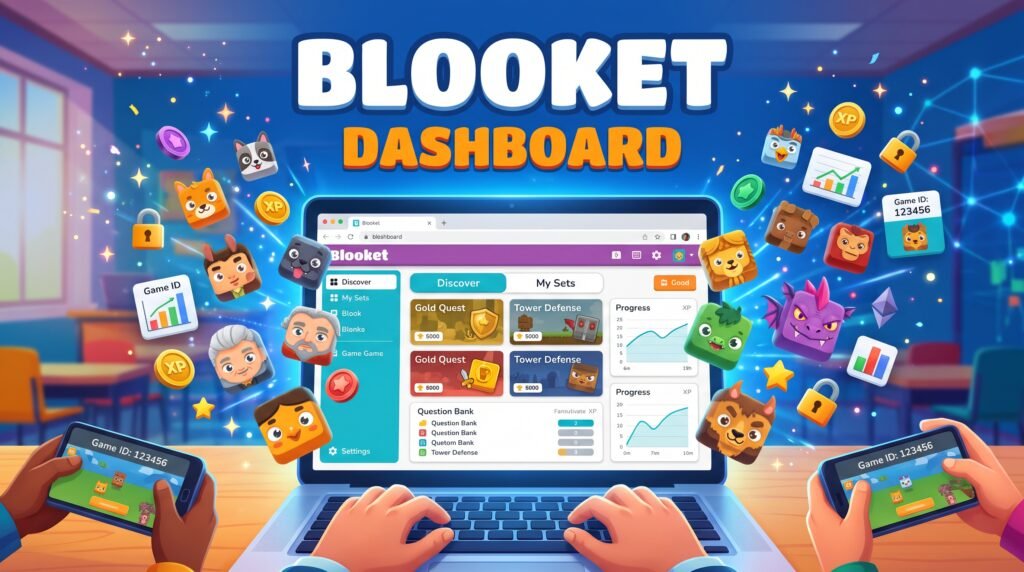
Interactive learning has transformed modern classrooms and study sessions, turning dull quiz drills into fast-paced digital competitions. At the center of this shift sits the blooket dashboard, a unified control hub where educators build content, launch live sessions, and evaluate learner progress, while students track achievements and unlock digital collectibles. Whether you are hosting a live trivia battle assigning independent review tasks, understanding every corner of this workspace saves valuable preparation time and boosts engagement.
Drawing from over seven years of hands-on experience in ed-tech publishing and digital learning platforms, I have tested countless classroom gaming portals to see what truly works under real-world pressure. Many newcomers struggle to locate export tools, separate live hosting from asynchronous assignments, or optimize account settings for larger groups. This guide breaks down the entire workspace step by step, offering practical workflows, comparison tables, and troubleshooting fixes so you can master every feature with confidence.
Understanding the Core Layout of the Blooket Dashboard
Logging into your account opens a clean, browser-based workspace built for speed and clarity. Rather than burying tools behind complex menus, the interface organizes your primary actions along a streamlined navigation bar so you can move from lesson planning to live gameplay in seconds.
- Discover Tab: Browse millions of community-made question sets across math, science, history, language arts, and pop culture using keyword filters.
- My Sets Library: Store, edit, duplicate, and organize every custom quiz you build or favorite from the public database.
- Create Studio: Assemble original multiple-choice question banks from scratch, import spreadsheets, or add visual prompts for deeper comprehension.
- History & Reports: Review completed live matches and asynchronous assignments with detailed accuracy breakdowns.
- Stats & Blooks: View personal gameplay milestones, earned tokens, and unlocked character avatars inside your profile area.
- Settings Panel: Adjust profile visibility, password credentials, subscription tiers, and classroom preferences.
How Teachers Use the Blooket Dashboard to Host and Manage Games
For educators, the blooket dashboard acts as a mission control center that bridges curriculum goals with competitive gameplay. Instead of relying on static worksheets, hosts can deploy a single question bank across multiple game modes—such as Tower Defense, Gold Quest, or Crypto Hack—keeping review sessions fresh throughout the semester.
- Instant Live Hosting: Select any set from your library, click Host, pick a game mode, and generate a unique Game ID or QR code for instant projection.
- Customizable Match Rules: Control match duration, cash or gold targets, late-joining permissions, and randomized nickname generators before players enter.
- Homework Mode Scheduling: Assign self-paced games with custom deadlines so learners complete practice rounds outside regular hours.
- Real-Time Lobby Moderation: Remove inappropriate nicknames or pause active sessions directly from the host screen without disrupting valid participants.
- Content Adaptation: Clone existing public quizzes and tweak difficulty levels or wording to match specific grade standards.
Exploring the Student View Inside the Blooket Dashboard
While guests can jump into live matches via play.blooket.com without registering, signing into a dedicated learner profile unlocks persistent progression inside the blooket dashboard. Gamified rewards turn routine studying into a habit-forming loop where correct answers directly fuel character collection.
- Token & XP Accumulation: Earn daily tokens and experience points by answering questions accurately in both live matches and solo practice.
- Blook Market & Packs: Spend earned currency on themed mystery boxes to unlock rare, epic, and chroma character icons.
- Solo Practice Modes: Launch independent runs on public or saved sets to prepare for upcoming exams at your own pace.
- Personal Accuracy Logs: Check lifetime wins, total questions answered, and favorite game modes from the statistics tab.
- Safe Account Controls: Use school-approved nicknames and secure passwords while keeping personal details private.
Teacher Tools vs. Student Features: Workspace Comparison
Understanding how permissions differ between host accounts and learner profiles prevents confusion during setup. While both roles share the same visual design, the platform tailors available modules based on account type and session role.
| Workspace Feature | Teacher / Host Account | Student / Player Account |
| Create & Edit Question Sets | Full access to build, import, and modify sets | Limited to personal study sets where permitted |
| Host Live Classroom Games | Launches live sessions with Game IDs and QR codes | Joins hosted matches via code or link |
| Assign Asynchronous Homework | Sets deadlines and tracks completion rates | Completes assigned links before expiration |
| Detailed Class Analytics | Views question-by-question class accuracy | Views personal lifetime stats and wins |
| Blook Collectibles & Market | Basic avatar selection for host profile | Full access to unlock packs and rare Blooks |
| CSV / Spreadsheet Exports | Downloads gradebook-ready score sheets | Not available |
Free Starter Plan vs. Blooket Plus: Data and Capacity Breakdown
Choosing the right tier depends on your class size, reporting needs, and assignment timelines. The free Starter tier covers everyday classroom review, whereas paid upgrades expand room capacity and unlock deeper diagnostic tools.
| Platform Capability | Free Starter Plan | Blooket Plus Tier |
| Question Set Creation & Discovery | Unlimited public and custom sets | Unlimited public and custom sets |
| Maximum Live Players per Game | Up to 60 participants | Up to 300 participants |
| Homework Assignment Window | Up to 14 days | Up to 365 days |
| Enhanced Question Reports | Standard session summary | Full granular analytics & audio features |
| Exclusive Game Modes | Core rotating library | Early access and bonus modes |
| Priority Support | Standard help center | Priority email assistance |
Analyzing Performance Reports and Exporting Data from the Blooket Dashboard
Post-game data turns fun activities into actionable teaching insights. Inside the History section of the blooket dashboard, every completed live match and homework link generates an automatic scorecard showing exactly where learners excelled or stumbled.
- Class-Wide Accuracy Percentages: Spot immediately whether a topic requires re-teaching before moving to the next unit.
- Question-Level Breakdown: Identify specific prompts that triggered high miss rates across the lobby.
- Individual Participant Logs: Track correct versus incorrect responses tied to each player’s nickname.
- One-Click CSV Exports: Download clean spreadsheet files from the Reports view for seamless gradebook or LMS uploads.
- Case Study — Weekly Review Optimization: In a 28-student middle school science class, running a 10-minute Friday review via Homework Mode revealed that 64% of learners missed questions on cellular respiration. Exporting the CSV report allowed the instructor to group struggling students for a targeted Monday mini-lesson, raising unit test averages by 18% the following week.
Troubleshooting Common Blooket Dashboard Login and Display Issues
Even reliable web applications occasionally hit browser snags, school firewall blocks, or session timeouts. Most workspace glitches stem from cached data or network restrictions rather than account errors.
- Missing Post-Game Reports: Confirm that you were logged into the host account before starting the match and that players completed the session instead of closing tabs early.
- CSV Export Button Unresponsive: Disable aggressive pop-up blockers, clear browser cookies, or switch to an updated Chrome or Edge window.
- Mobile Layout Cramping: Rotate smartphones to landscape orientation or switch to a tablet or laptop when editing large question sets.
- School Network Blocks: Ask your IT administrator to whitelist
blooket.comandplay.blooket.comso WebSocket game connections load smoothly. - Forgotten Login Credentials: Use the official password reset workflow on the Blooket Official Portal rather than creating duplicate accounts that split your saved sets.
Frequently Asked Questions About the Blooket Dashboard
How do I access my Blooket dashboard after signing up?
Visit the official website at blooket.com, click the Log In button in the top-right corner, and enter your registered email or Google credentials. Once authenticated, the browser automatically loads your main account workspace containing your saved sets, Discover search bar, and game history.
Can students use the Blooket dashboard without creating an account?
Students do not need an account to join a teacher-hosted live match—they simply visit play.blooket.com and enter the six-digit Game ID or scan the host QR code. However, logging into a personal student profile is required to save unlocked Blooks, spend earned tokens, and view lifetime stats.
Why are my game reports not showing up in the dashboard history?
Reports only save when you launch a match while signed into your account and allow the game timer or goal to finish properly. If you close the host tab mid-game or host while logged out, the system will not record participant analytics in your history log.
How can I export student scores from the Blooket dashboard to Excel?
Open your account History tab, select the completed live game or homework assignment you want to review, and click the Reports or Export button. The platform generates a downloadable CSV file that opens directly in Microsoft Excel, Google Sheets, or school gradebook software.
Does the Blooket dashboard work well on smartphones and tablets?
Yes, the web interface adapts to mobile browsers on iOS and Android devices without requiring an app download. While joining games on a phone is effortless, creating long quizzes or reading wide analytics tables feels much smoother in landscape mode or on a larger screen.
Final Thoughts on Mastering Your Blooket Workspace
A well-organized blooket dashboard transforms how educators plan reviews and how learners interact with study material. By combining fast quiz creation, flexible live and homework hosting, and exportable accuracy reports inside one browser tab, the platform eliminates busywork while keeping participation high. Whether you rely on the generous free tier for daily warm-ups or upgrade for larger auditorium sessions, mastering these tools ensures every minute of gameplay drives measurable progress.
If you want to explore more strategies for gamified learning, check out our related guide on gaming streamer tips for growth or browse additional educational tech tutorials across our portal. Log into your workspace today, audit your saved question sets, and test a new game mode with your next group to see the engagement boost firsthand.